Turn repetition into rows.
Extract repeated cards, lists and tables. Edit fields, preview values and keep the columns you need.
Cards · Tables · Directories
 Local Scraper Studio
Point to what you need. Collect it across pages. Export a table or an image collection, with your workflow saved right in Chrome.
Chrome extension · Chrome Web Store review in progress
Select. Preview. Collect. Export.
FOUR TOOLS. ONE WORKSPACE.
Start with automatic detection or pick fields directly on a page. You decide what becomes a row.
Extract repeated cards, lists and tables. Edit fields, preview values and keep the columns you need.
Choose fields on a detail page, then reuse the setup across pasted URLs, a CSV column or links from history.
Find page images, filter by dimensions and format, select your collection and download files or a ZIP.
Gather visible email addresses and nearby context, with duplicates removed and source pages included.
A CLOSER LOOK
Set up extraction in the side panel, then review the output in a dedicated results workspace.
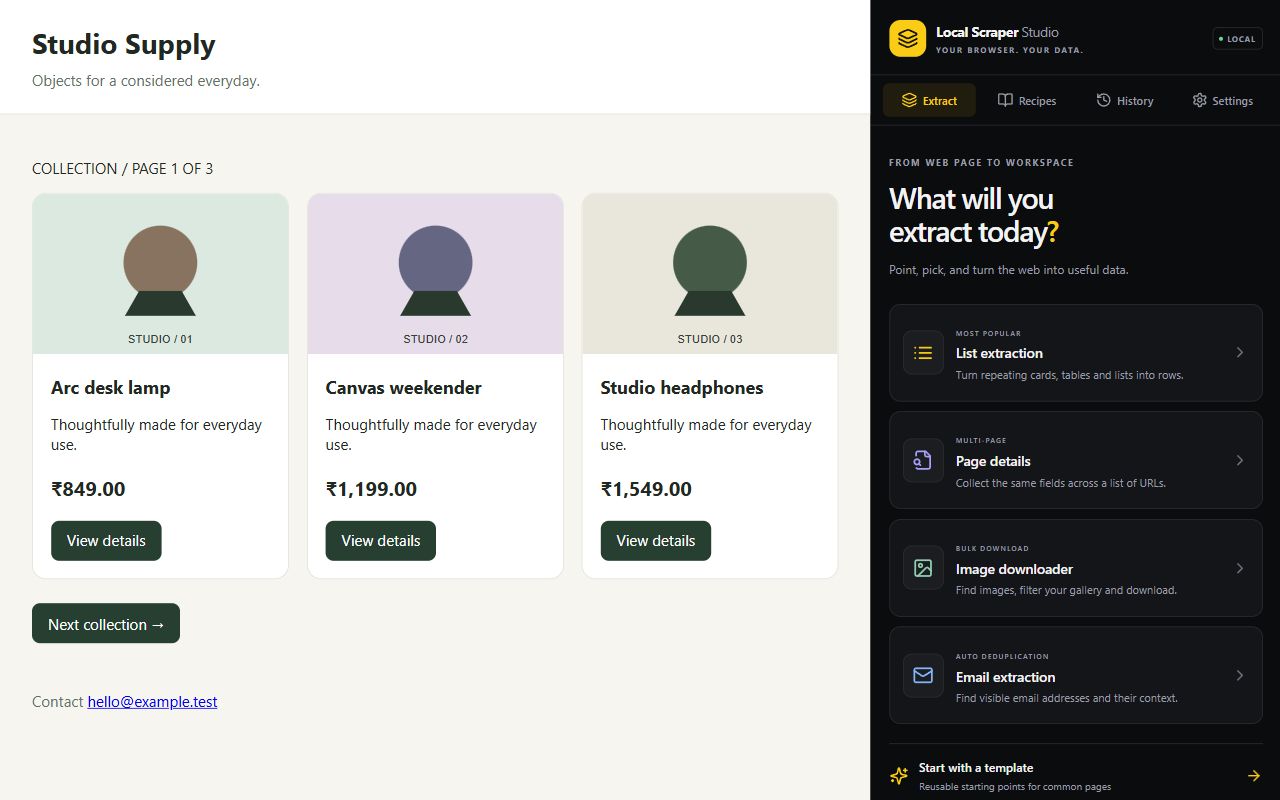
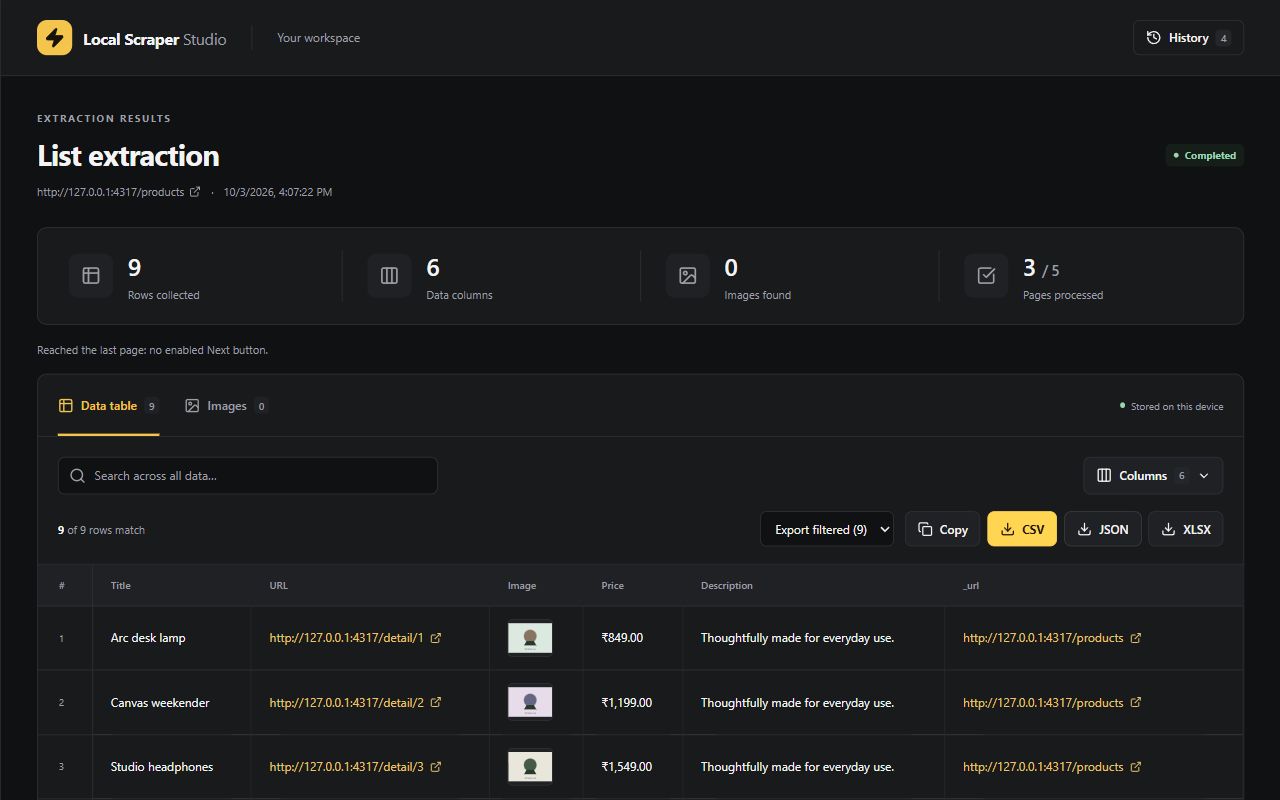
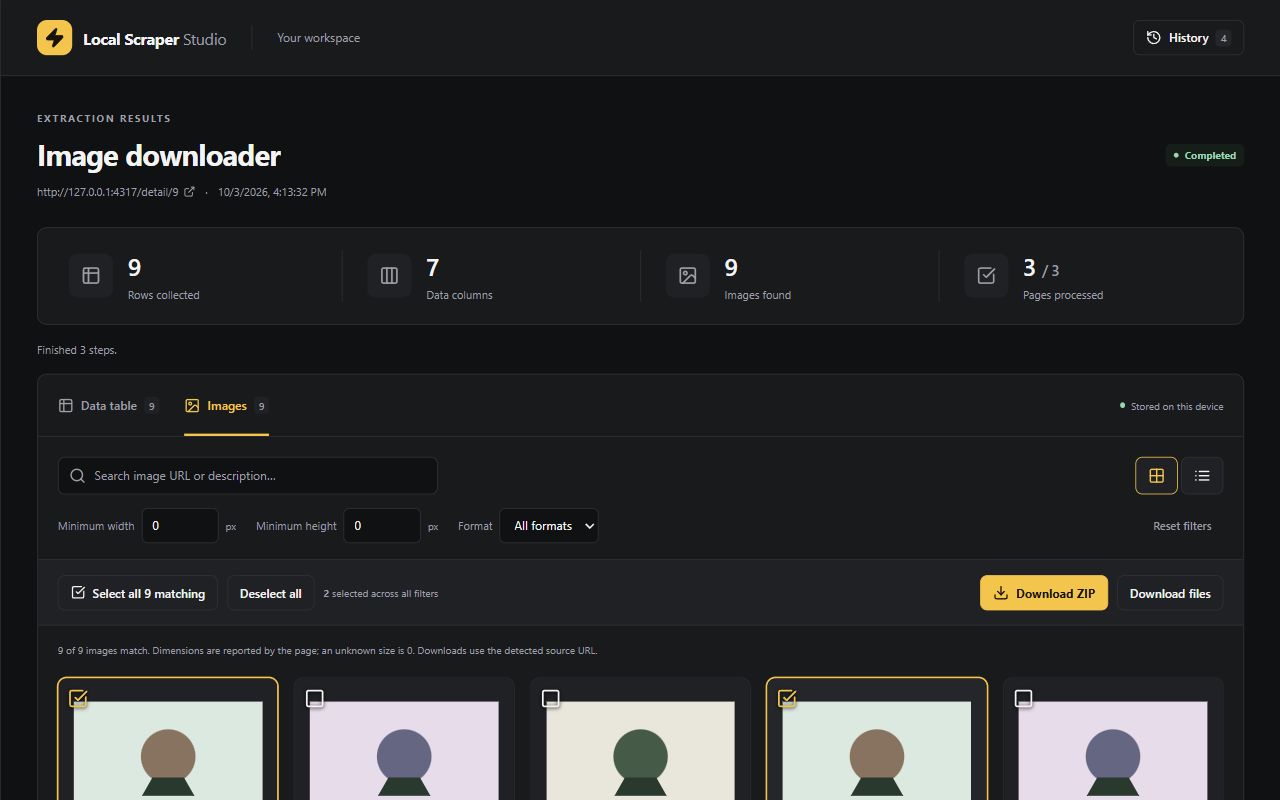
FROM FIRST CLICK TO EXPORT
Open a website and choose an extraction tool. Detect a list or select fields visually.
Check the output, configure pagination or scrolling, and run. Pause or resume when needed.
Export your results and save a recipe. Return to local history for a previous collection.
LOCAL BY DESIGN
Recipes, results and settings are stored locally. The extension does not send extracted datasets to the developer or an analytics service. Page navigation and image requests still contact the websites you choose.
Read the privacy policy ↗Keep useful data close to your workflow, and export it when you are ready.
GOOD TO KNOW
Website structures vary, so selectors and delays may need adjustment. Browser-internal pages, the Chrome Web Store, inaccessible frames and closed shadow roots are not supported. The extension does not bypass access controls or CAPTCHAs.
Tables can be exported as CSV, Excel or JSON. Image collections support individual downloads and ZIP archives. Some authenticated or hotlink-protected images may not be downloadable.
The extension has been submitted for Chrome Web Store review. This page will link to the public listing when it is available. Chrome 116 or newer is required.
Results remain in extension storage in your Chrome profile until deleted or removed by your history retention settings. Uninstalling removes extension storage. Files you have exported remain on your device.
SUPPORT
Send your extension version and a short description of the issue.
Please avoid attaching sensitive extracted data.